Power Pages: Turning an Entity List into a Search Engine
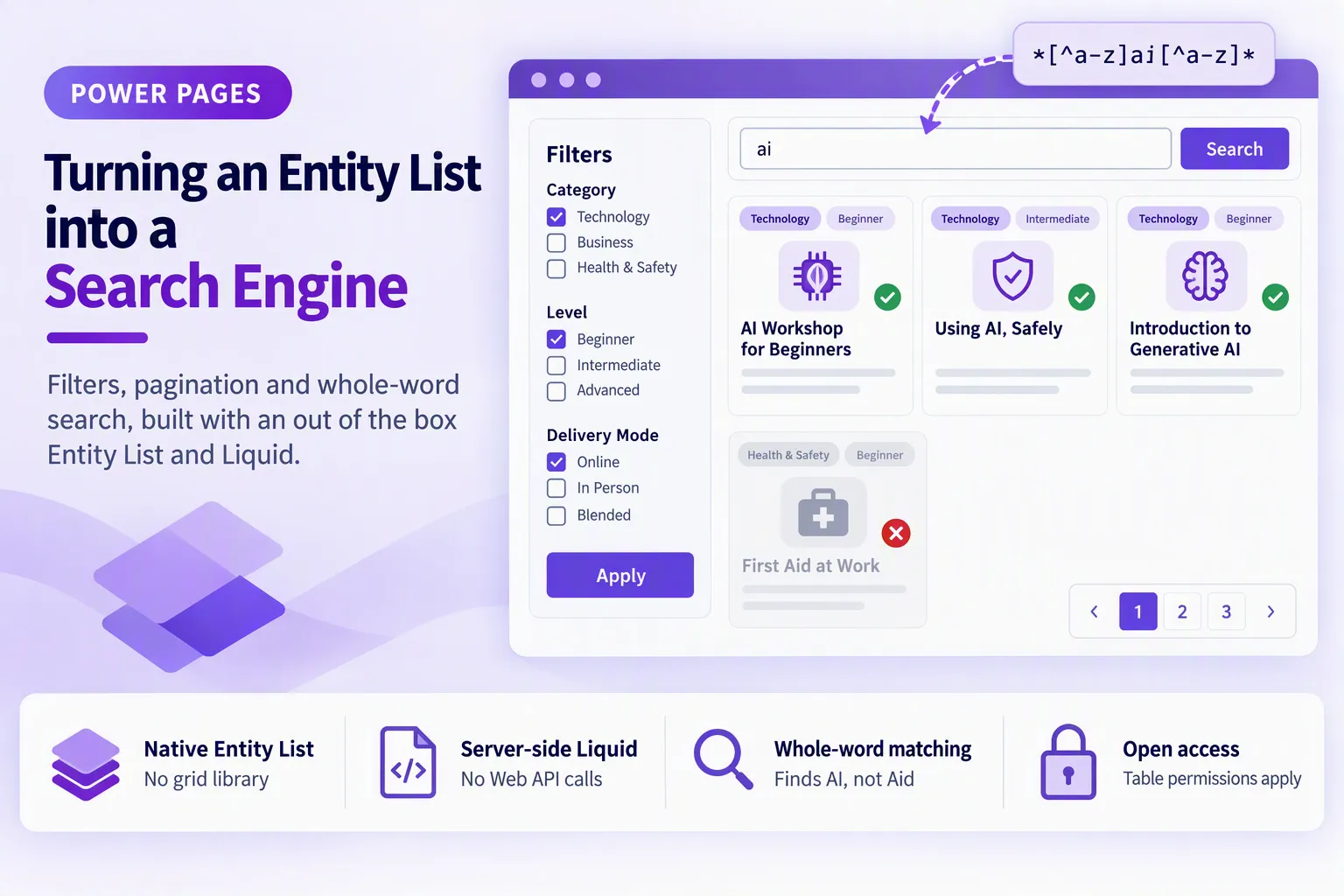
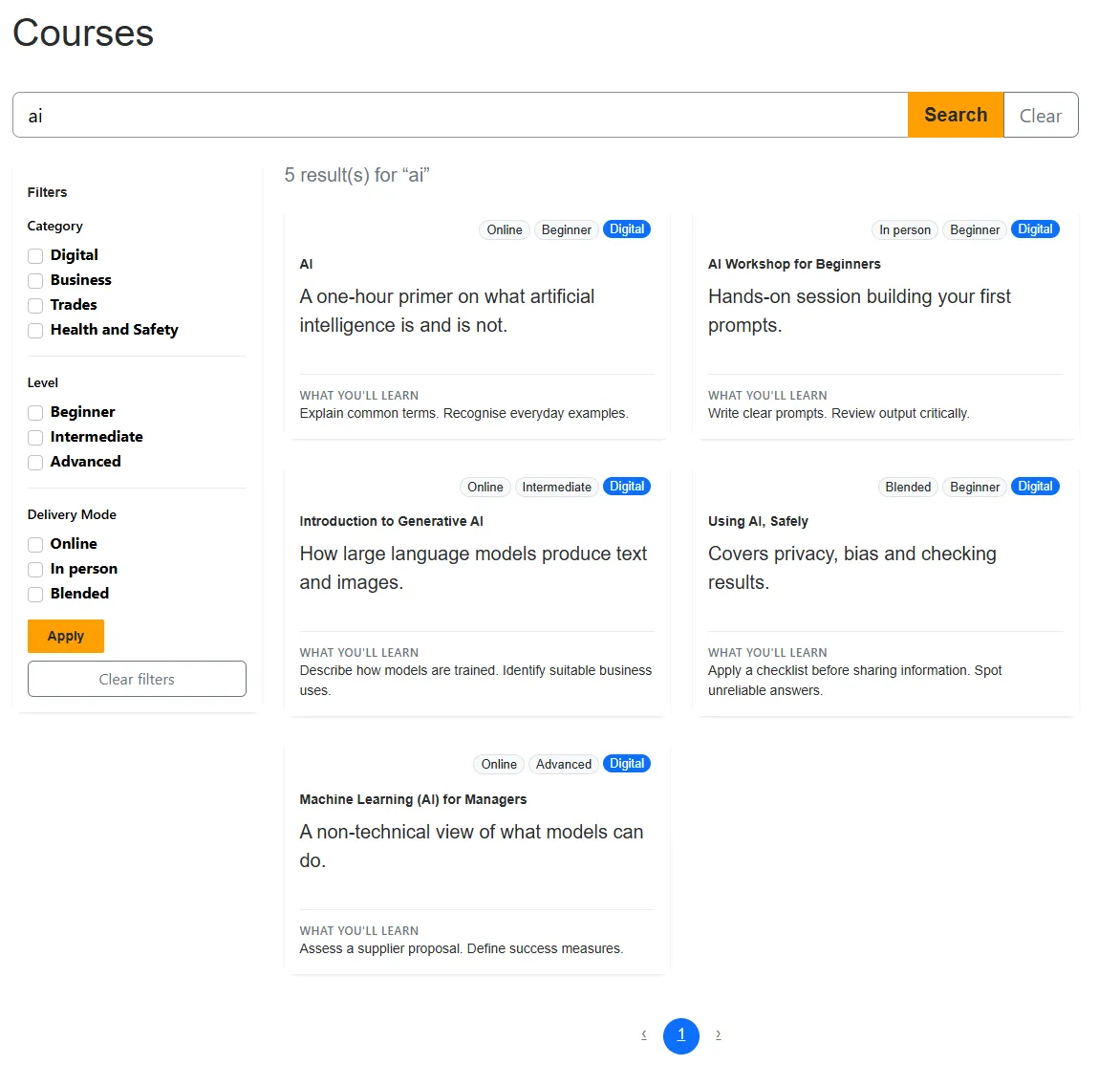
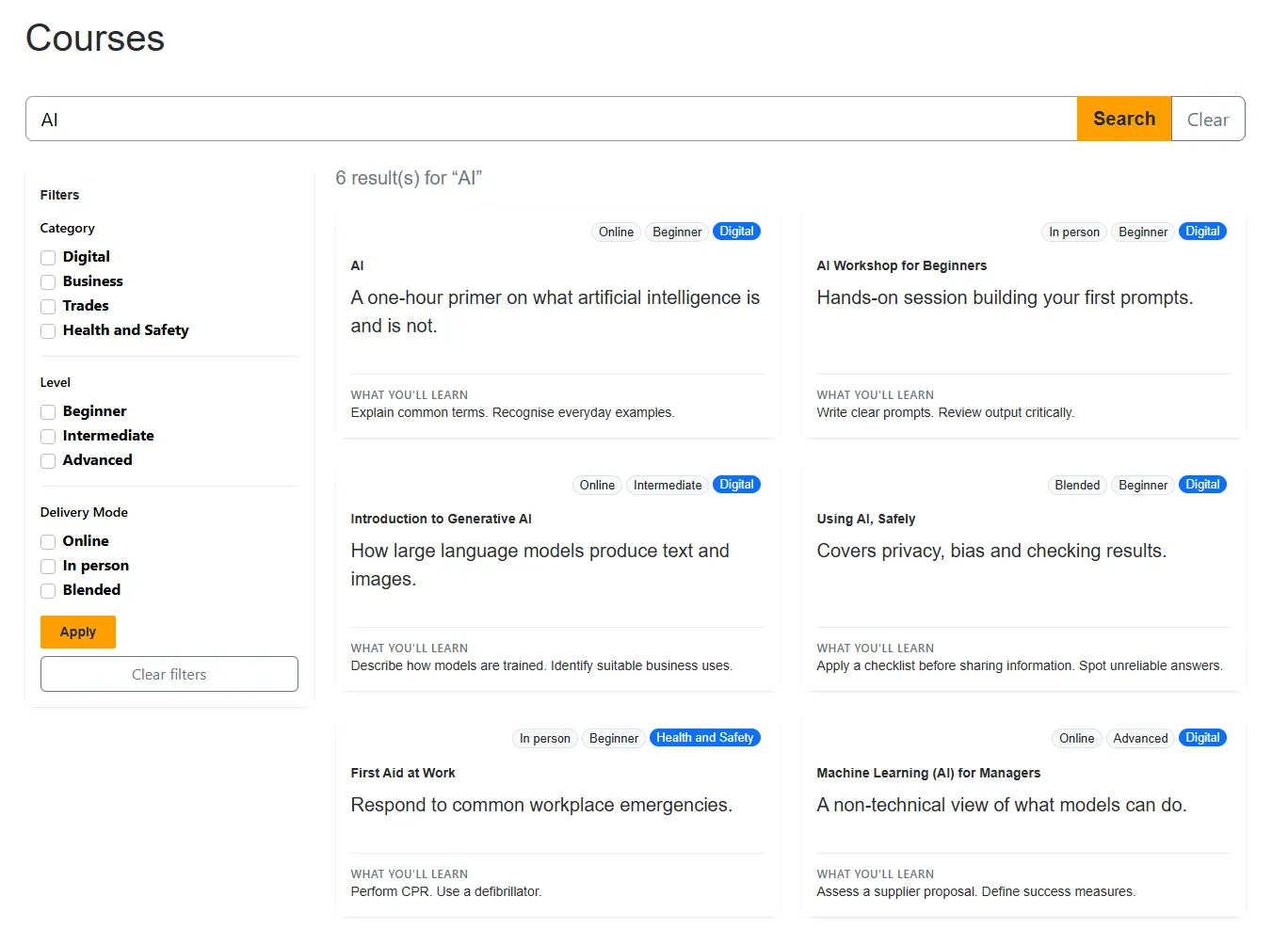
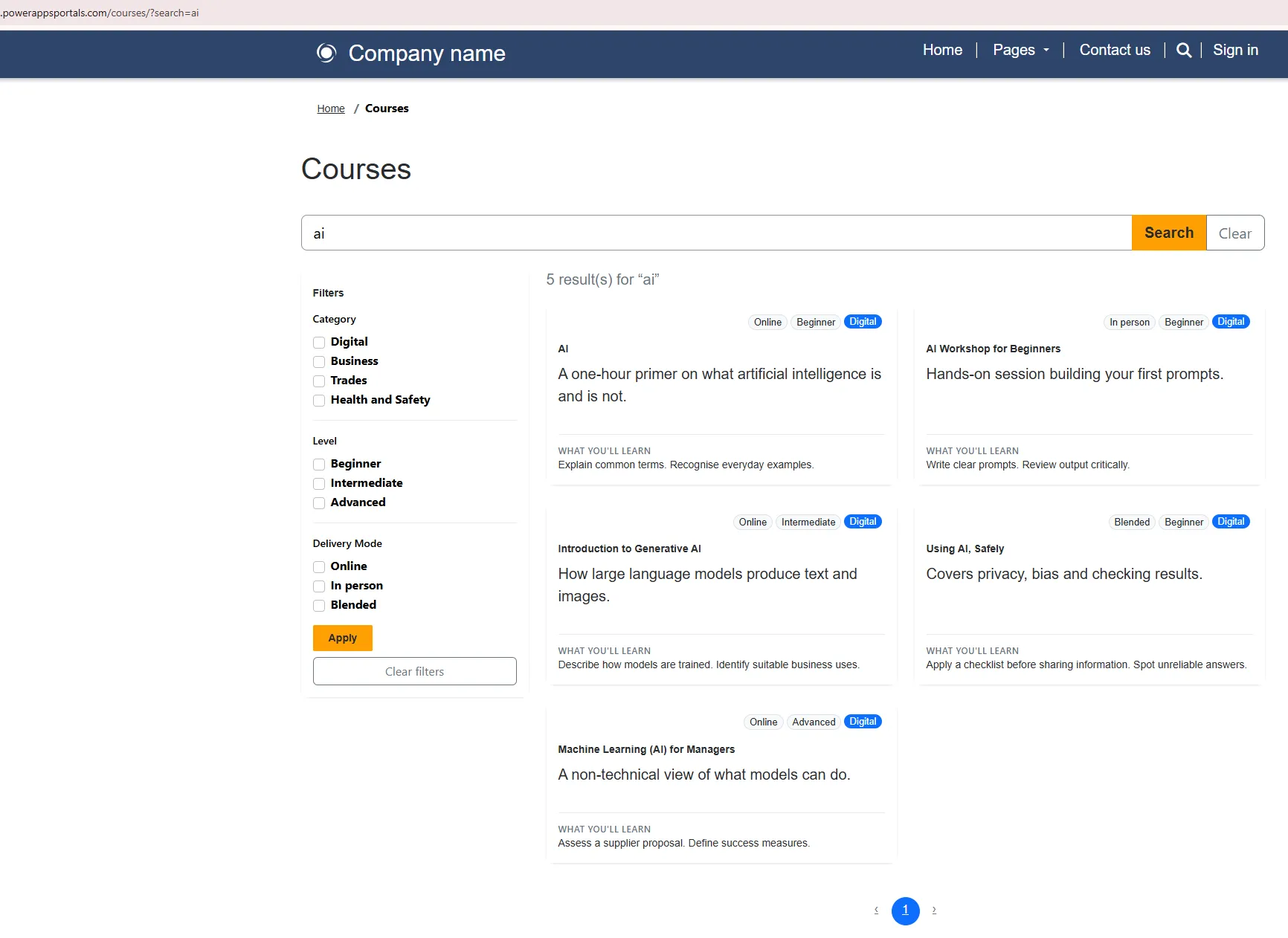
I recently had to build a course search page in Power Pages. The brief was ordinary: a search box, a sidebar of filters, results as cards, pagination. One requirement turned out to be harder than it looked. Searching for “ai” had to find “AI Workshop for Beginners” and “Using AI, Safely”, and it must not find “First Aid at Work”, “Painting and Decorating Basics” or “Email Campaign Essentials”.
This post shows how to do that with native pieces only: an Entity List, the
Liquid entitylist and entityview tags, and a FetchXML metadata filter.
There is no client-side grid library and no Web API call to read the data. The
whole thing is one web template, one formula column and one filter. That means it respects table permissions, and all the data is
loaded server-side by Liquid.
I’m assuming you know Liquid and have set up an Entity List before. I’m not assuming you’ve used FetchXML metadata filters, because I hadn’t either. There isn’t much online about their syntax.
The full template is included further down.
The problem
The search that comes with an Entity List is Quick Find. It matches against the
table’s Find Columns, and it matches text, not words. Out of the box it is
“starts with”: the platform adds a wildcard to the end of what you type. Put a
* in front of the term and it becomes “contains”.
Neither is what a visitor means when they type “ai” into a course search. “Contains” brings back every course with those two letters next to each other anywhere in the name.
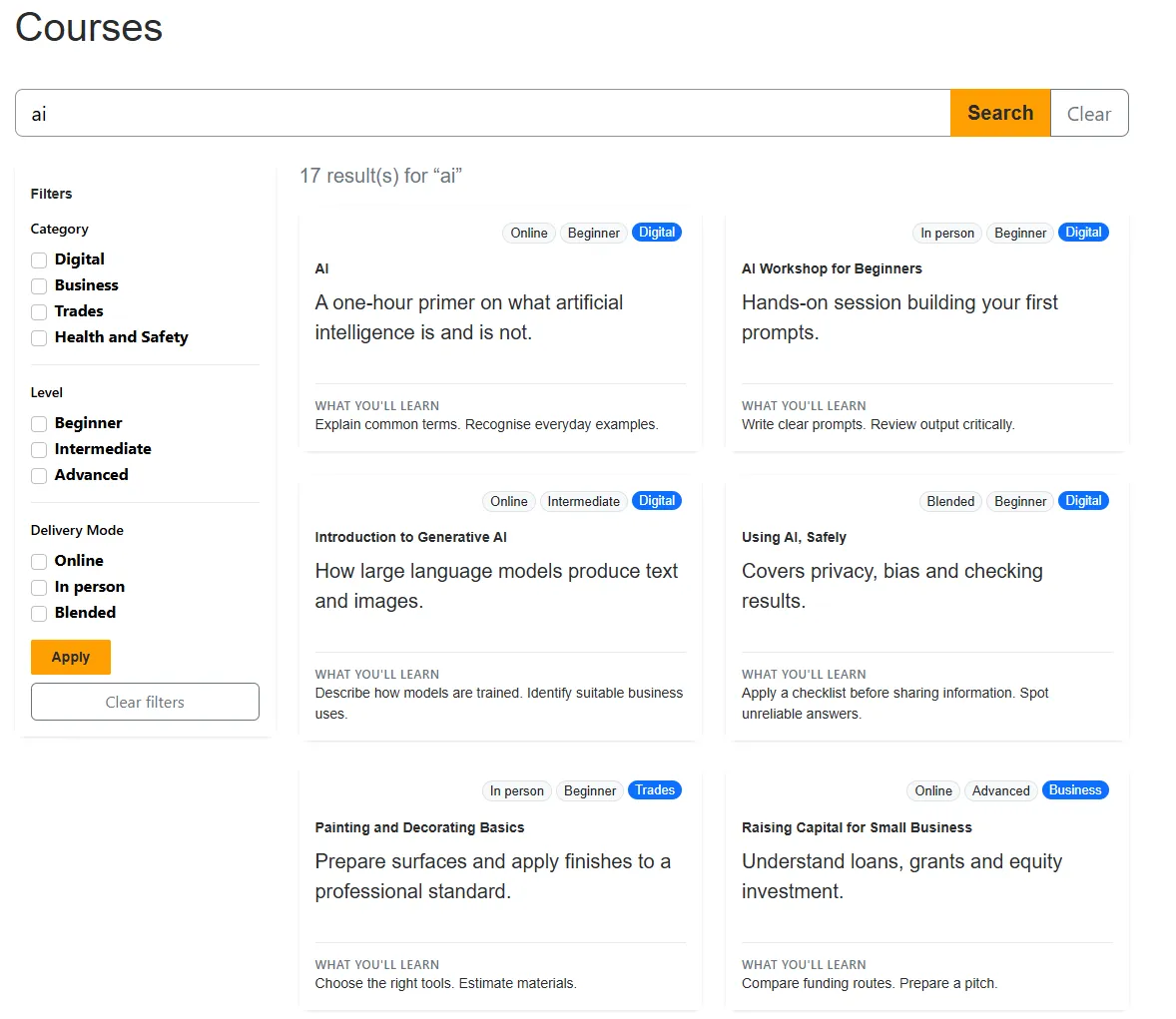
On the demo data that is 17 results. Only 5 of them have the word “AI” in the name.
What I wanted was what any search engine does: treat the text as words, and match the word that was typed.
The demo
The demo is a small course catalogue.
- Table: Course (
cej_course). - Columns: Course Name (
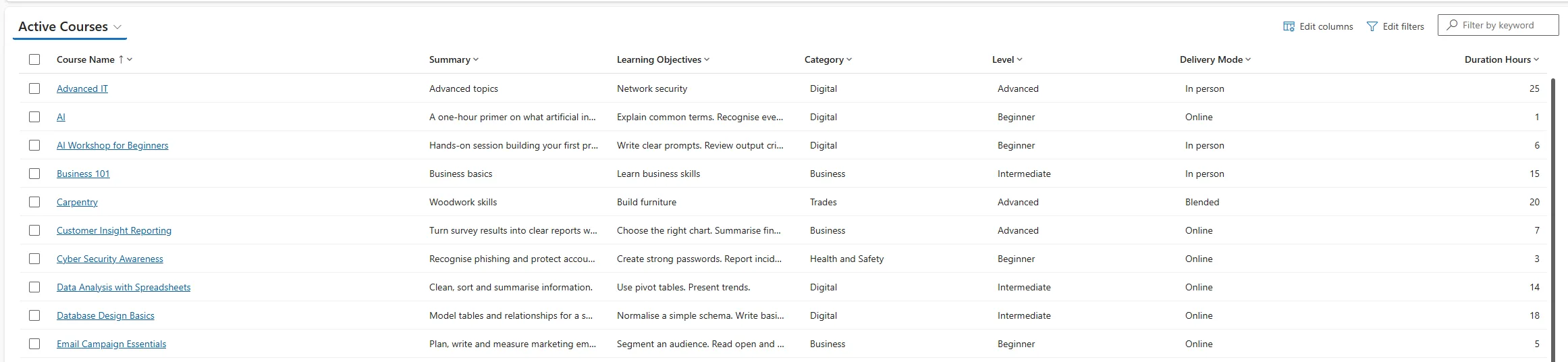
cej_coursename), Summary, Learning Objectives, and three choice columns: Category, Level and Delivery Mode. - Entity List: one list on the Course table, with search enabled and three metadata filters, one per choice column.
- Page:
/courses/, using a custom web template, with the Entity List selected in the page’s List field.
The sample rows include deliberate traps: course names where “ai” sits inside another word.
What I tried first
Dataverse Search
The searchindex tag gives you proper word-based search, but I ruled it out
early. Its results can’t be filtered or faceted by the Entity List’s metadata
filters, so it can’t sit next to a filter sidebar. I needed both.
Four patterns per column
A FetchXML metadata filter can take typed text. You add
adx:uiinputtype="text" to a condition, and the platform replaces that
condition’s value with whatever the visitor typed. Wildcards in the typed value
pass through: * means “any characters”, and character classes work, so
[^a-z] means “one character that is not a letter”.
That suggests a way to describe a whole word. A word is the term with a non-letter on each side. The edges of the text need separate handling, so you end up with four patterns, OR’d together:
| The word is… | Pattern for “ai” |
|---|---|
| the whole value | ai |
| at the start | ai[^a-z]* |
| at the end | *[^a-z]ai |
| in the middle | *[^a-z]ai[^a-z]* |
I built this, and it nearly worked. Searching “ai” returned the five right courses, plus “First Aid at Work”.
Running each pattern on its own showed why. The “whole value” pattern returned
both “AI” and “AI Workshop for Beginners”. The “at the end” pattern returned
four courses, one of them “First Aid at Work”. The platform adds a wildcard to the end of every typed
value. So ai really runs as “starts with ai”, and *[^a-z]ai really runs
as “a non-letter, then ai, then anything”, which is exactly “ Aid at Work”.
Two of the four patterns can’t say what they mean, because there is no way to say “and nothing after this”.
Different operators
The obvious fix is to stop using like for those two conditions: eq for the
whole value and ends-with for the end. I tried it. The eq condition
returned 14 courses and the ends-with condition returned the same four as
before. Whatever operator the condition has, a typed value is treated as a
wildcard match.
Using a formula column to pad the course name
Of the four patterns, “in the middle” is the one that works properly, because it already ends in a wildcard. The trouble is only that a word at the very start or very end of the name has no character beside it to be the non-letter.
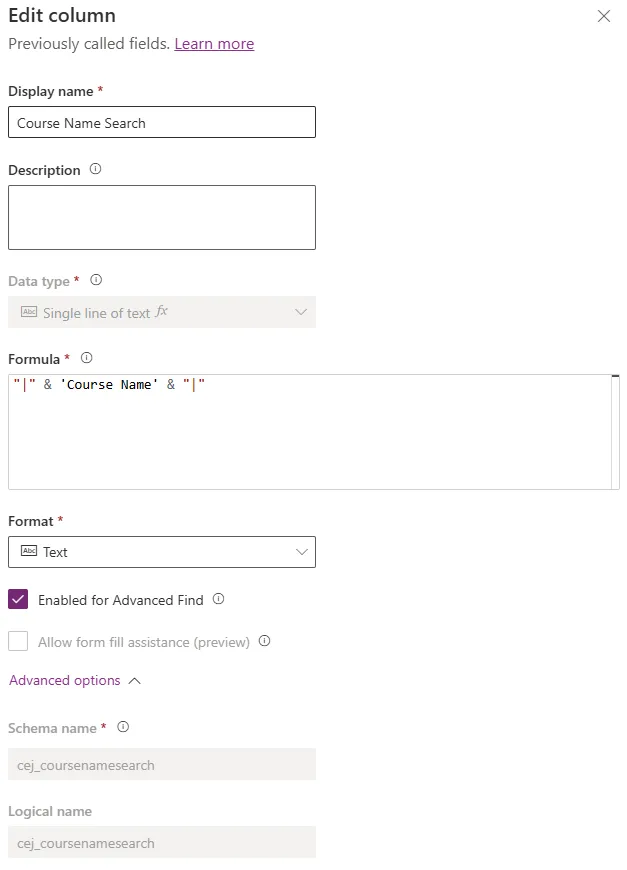
So give it one. I added a formula column to the table that holds the course
name with a | at each end:
"|" & 'Course Name' & "|"“First Aid at Work” becomes |First Aid at Work|, and “AI” becomes |AI|.
Now every word in every name has a character on both sides, and the single
“in the middle” pattern covers all four cases:
| Course name | Padded value | Matches *[^a-z]ai[^a-z]*? |
|---|---|---|
| AI | |AI| |
Yes: | before, | after |
| AI Workshop for Beginners | |AI Workshop for Beginners| |
Yes: | before, space after |
| Introduction to Generative AI | |Introduction to Generative AI| |
Yes: space before, | after |
| Using AI, Safely | |Using AI, Safely| |
Yes: space before, comma after |
| Machine Learning (AI) for Managers | |Machine Learning (AI) for Managers| |
Yes: bracket before, bracket after |
| First Aid at Work | |First Aid at Work| |
No: “d” after is a letter |
The trailing wildcard the platform adds is now harmless, because the pattern ends in one anyway. And the filter shrinks from four conditions to one.
Setting it up
1. The formula column
On the Course table, add a column:
- Display name: Course Name Search
- Data type: Formula
- Formula:
"|" & 'Course Name' & "|"
Mine has the logical name cej_coursenamesearch. It doesn’t need to be on any
form or in the list’s view.
2. The filter on the Entity List
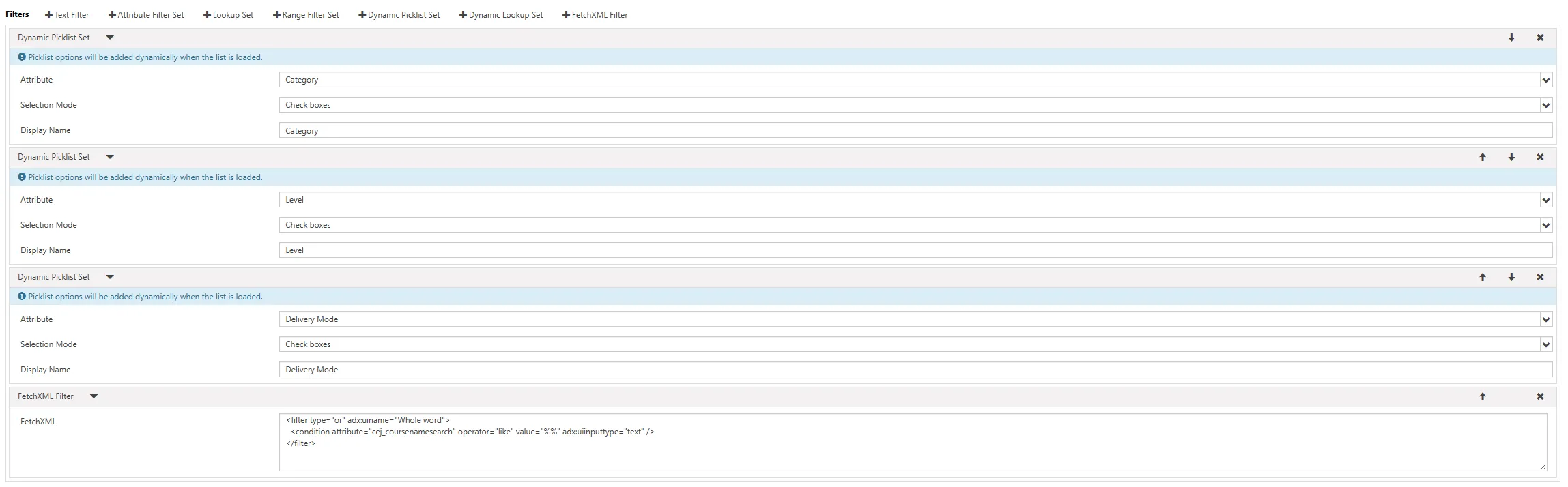
Open the Entity List in the Power Pages Management app, go to the Metadata Filter section, and add a FetchXML filter. I added it as the last filter in the list:
<filter type="or" adx:uiname="Whole word">
  <condition attribute="cej_coursenamesearch" operator="like" value="%%" adx:uiinputtype="text" />
</filter>
The value="%%" is a placeholder. The platform swaps in the typed value.
3. Find the filter’s index
Each metadata filter has a position, counting from 0. The template needs to know the whole-word filter’s position, both to send it a value and to keep it out of the sidebar. In the demo there are three choice filters before it, so it is 3.
To check it on your own list: set whole_word_filter_index in the template to
'' so the filter’s text box appears in the sidebar, type something in it,
press Apply, and look at the mf value in the URL. The number before the =
is the index.
The platform doesn’t mind where the filter sits in the list, and the template finds it by this index, not by position. I keep it last so that adding it doesn’t change the indexes of the choice filters.
How the template works
There are five ideas in the template. This section walks through them one at a time; the complete, commented template follows in the next section.
The mf parameter
The sidebar’s state travels in one query-string parameter, mf. Its value is
itself a small query string of filterIndex=value pairs:
0=100000001&1=100000000That whole string is then URL-encoded to sit inside the page URL. A filter with several text conditions takes one pair per condition, with the index repeated, matched to the conditions by order.
Un-escape mf before using it
This one cost me time. When you read params.mf into a Liquid variable, the
platform HTML-escapes it, so every & between pairs becomes &. Pass that
to entityview and it only recognises the first pair. The symptom is that one
sidebar filter works and the rest are silently ignored.
{% assign mf_value = params.mf | default: '' | replace: '&', '&' %}Build the whole-word value on the server
For a single-word search, the template builds the pattern, adds it to the
sidebar’s filter values, and passes the lot to entityview as metafilter.
It passes an empty search, so Quick Find doesn’t apply as well.
{% assign whole_word_filter_index = '3' %}

{% assign search_term = params.search | default: '' | remove: '*' | strip %}
{% assign mf_value = params.mf | default: '' | replace: '&', '&' %}

{% comment %} Default: Quick Find, with a leading * so it means "contains". {% endcomment %}
{% assign quick_find = '' %}
{% if search_term.size > 0 %}
  {% assign quick_find = '*' | append: search_term %}
{% endif %}
{% assign query_mf = mf_value %}

{% comment %} Strip characters that act as wildcards in a "like" pattern. {% endcomment %}
{% assign word = search_term | remove: '%' | remove: '_' | remove: '[' | remove: ']' | remove: '^' | strip | downcase %}
{% assign word_parts = word | split: ' ' %}

{% if word.size > 0 and word_parts.size == 1 and whole_word_filter_index.size > 0 %}

  {% comment %} Keep the sidebar's entries; drop any for the whole-word filter. {% endcomment %}
  {% assign mf_entries = mf_value | split: '&' %}
  {% assign sidebar_mf = '' %}
  {% for entry in mf_entries %}
    {% assign entry_index = entry | split: '=' | first %}
    {% if entry.size > 0 and entry_index != whole_word_filter_index %}
      {% assign sidebar_mf = sidebar_mf | append: entry | append: '&' %}
    {% endif %}
  {% endfor %}

  {% comment %} *[^a-z]word[^a-z]*, with [^a-z] URL-encoded as %5B%5Ea-z%5D. {% endcomment %}
  {% assign w = word | url_encode %}
  {% assign i = whole_word_filter_index %}
  {% capture word_pattern %}{{ i }}=*%5B%5Ea-z%5D{{ w }}%5B%5Ea-z%5D*{% endcapture %}

  {% assign query_mf = word_pattern %}
  {% if sidebar_mf.size > 0 %}
    {% assign query_mf = query_mf | append: '&' | append: sidebar_mf %}
  {% endif %}

  {% comment %} Quick Find must not also apply. {% endcomment %}
  {% assign quick_find = '' %}
{% endif %}

{% entityview id: params.view, search: quick_find, page: params.page, pagesize: params.pagesize, metafilter: query_mf %}
  ...
{% endentityview %}
The visitor never sees any of this. The URL stays as ?search=ai. The pattern
is rebuilt on every request and is never written into a link, so pagination and
filter links carry only the search term and the visible filters.
Keep the filter out of the sidebar
The sidebar comes from the metafilters helper, which returns every filter on
the list, including the whole-word one. Two things stop its text box appearing:
the helper is given params.mf rather than the value with the pattern added,
and the loop skips the filter by index.
{% assign filters = entitylist | metafilters: params.mf, entityview %}

<div id="course-filters">
  {% for filter in filters %}
  {% assign filter_index = filter.id | append: '' %}
  {% unless filter_index == whole_word_filter_index %}
    <div class="filter-group">
      <div class="filter-group-label">{{ filter.label | h }}</div>
      {% for option in filter.options %}
        <div class="form-check">
          <input class="form-check-input" type="checkbox" name="{{ filter.id | h }}" value="{{ option.id | h }}"
                 id="filter-{{ filter.id | h }}-{{ forloop.index }}" {% if option.checked %}checked{% endif %} />
          <label class="form-check-label" for="filter-{{ filter.id | h }}-{{ forloop.index }}">{{ option.label | h }}</label>
        </div>
      {% endfor %}
    </div>
  {% endunless %}
  {% endfor %}
</div>

<button type="button" class="btn btn-primary" data-serialized-query="mf" data-target="#course-filters">Apply</button>
The Apply button needs no script of mine. The portal’s own script sees
data-serialized-query="mf", collects every input inside the data-target
element, and reloads the page with the new mf value. Each input’s name is
its filter’s index.
Results and pagination
The results are a plain loop over entityview.records, rendered on the server.
Table permissions apply automatically, so a visitor only gets rows they’re
allowed to read.
{% for course in entityview.records %}
  <h3>{{ course['cej_coursename'] | h }}</h3>
  <span class="badge">{{ course['cej_level'].label | h }}</span>
  <p>{{ course['cej_summary'] | h }}</p>
{% endfor %}
Only columns in the list’s view are available on each record. Pagination is
built from entityview.pages, entityview.previous_page and
entityview.next_page, with each link carrying search and mf.
One small trap: Liquid in Power Pages has no else branch on a for loop. For
the “no results” message, check entityview.records.size == 0 after the loop.
The full template
This is the whole web template, as it runs on the demo site. It extends the
site’s standard Layout 1 Column template and uses Bootstrap 5 classes. Each
non-obvious block has a comment saying what it does and why. To reuse it,
change the column names to your own and set whole_word_filter_index to your
filter’s position.
{% extends 'Layout 1 Column' %}
{% block main %}
<style>
.course-search .course-card { border: 0; border-radius: .75rem; box-shadow: 0 1px 3px rgba(0, 0, 0, .12); transition: box-shadow .15s ease-in-out; }
.course-search .course-card:hover { box-shadow: 0 4px 14px rgba(0, 0, 0, .16); }
.course-search .course-card .card-title { font-weight: 600; }
.course-search .course-meta .badge { font-weight: 500; margin-right: .25rem; }
.course-search .course-objectives { border-top: 1px solid rgba(0, 0, 0, .08); padding-top: .75rem; }
.course-search .course-objectives-label { font-size: .75rem; font-weight: 600; letter-spacing: .04em; text-transform: uppercase; }
.course-search .filter-panel { border: 0; border-radius: .75rem; box-shadow: 0 1px 3px rgba(0, 0, 0, .12); }
.course-search .filter-group-label { font-size: .875rem; font-weight: 600; margin-bottom: .5rem; }
.course-search .filter-group + .filter-group { border-top: 1px solid rgba(0, 0, 0, .08); margin-top: 1rem; padding-top: 1rem; }
</style>
<div class="container course-search" role="main">
{% comment %}
The Entity List is the one chosen in the "List" field of the web page that
uses this template. The list supplies the table, the view, the page size,
the Quick Find search and the metadata filters; this template only decides
how it all looks.
{% endcomment %}
{% if page.adx_entitylist %}
{% entitylist id: page.adx_entitylist.id %}
{% comment %}
Position of the whole-word FetchXML filter among the list's metadata
filters, counting from 0. It is the last filter on the list. The sidebar
skips it so its text box is never shown to visitors. To see the box
(for example to check the number), set this to ''.
{% endcomment %}
{% assign whole_word_filter_index = '3' %}
{% comment %}
Tidy the typed term. Any * is removed because we add our own below.
{% endcomment %}
{% assign search_term = params.search | default: '' | remove: '*' | strip %}
{% comment %}
Reading params.mf into a variable HTML-escapes it: each & between filter
entries becomes &. Left like that, only the first sidebar filter is
recognised. Un-escape it before using it anywhere.
{% endcomment %}
{% assign mf_value = params.mf | default: '' | replace: '&', '&' %}
{% comment %}
Default: Quick Find. It adds a wildcard to the END of the term only, so a
leading * turns "starts with" into "contains". Used for multi-word terms.
{% endcomment %}
{% assign quick_find = '' %}
{% if search_term.size > 0 %}
{% assign quick_find = '*' | append: search_term %}
{% endif %}
{% assign query_mf = mf_value %}
{% comment %}
Whole-word search, for a single word. Characters that act as wildcards in
a "like" pattern are removed from the word first.
{% endcomment %}
{% assign word = search_term | remove: '%' | remove: '_' | remove: '[' | remove: ']' | remove: '^' | strip | downcase %}
{% assign word_parts = word | split: ' ' %}
{% if word.size > 0 and word_parts.size == 1 and whole_word_filter_index.size > 0 %}
{% comment %} Keep the sidebar's entries; drop any for the whole-word filter. {% endcomment %}
{% assign mf_entries = mf_value | split: '&' %}
{% assign sidebar_mf = '' %}
{% for entry in mf_entries %}
{% assign entry_index = entry | split: '=' | first %}
{% if entry.size > 0 and entry_index != whole_word_filter_index %}
{% assign sidebar_mf = sidebar_mf | append: entry | append: '&' %}
{% endif %}
{% endfor %}
{% comment %}
The pattern is: anything, a non-letter, the word, a non-letter, anything.
%5B%5Ea-z%5D is [^a-z] URL-encoded: any single character that is not a
letter. * means "any characters".
On its own that pattern misses a word at the very start or very end of
the text, because there is no character there to be the non-letter. And
"ends with" cannot be expressed here at all: the platform adds a
wildcard to the end of every typed value. So the filter does not search
the course name itself. It searches a formula column that holds the name
with a | added at each end ("|First Aid at Work|"). Every word then has
a character on both sides, and this one pattern covers every position.
{% endcomment %}
{% assign w = word | url_encode %}
{% assign i = whole_word_filter_index %}
{% capture word_pattern %}{{ i }}=*%5B%5Ea-z%5D{{ w }}%5B%5Ea-z%5D*{% endcapture %}
{% comment %}
One value per condition in the filter, in the same order. The filter
has one condition, so one value is sent. To search another column, give
it its own padded formula column, add a condition for it to the filter,
and append '&' and word_pattern again here.
{% endcomment %}
{% assign query_mf = word_pattern %}
{% if sidebar_mf.size > 0 %}
{% assign query_mf = query_mf | append: '&' | append: sidebar_mf %}
{% endif %}
{% comment %} Quick Find must not also apply. {% endcomment %}
{% assign quick_find = '' %}
{% endif %}
{% comment %}
search_url carries only the search term: it is where "Clear filters" goes.
list_url also carries the sidebar filters, for the pagination links. The
whole-word value is never put in a URL; it is rebuilt on each request.
{% endcomment %}
{% assign search_url = request.path %}
{% if search_term.size > 0 %}
{% assign search_url = search_url | add_query: 'search', search_term %}
{% endif %}
{% assign list_url = search_url %}
{% if mf_value.size > 0 %}
{% assign list_url = list_url | add_query: 'mf', mf_value %}
{% endif %}
{% comment %}
The hidden mf field carries the ticked sidebar filters along with a new
search, so searching doesn't clear them. Clear drops both.
{% endcomment %}
<form class="mb-4" method="get" action="{{ request.path | h }}" role="search">
{% if mf_value.size > 0 %}
<input type="hidden" name="mf" value="{{ mf_value | h }}" />
{% endif %}
<div class="input-group input-group-lg">
<input type="text" class="form-control" name="search" value="{{ search_term | h }}"
placeholder="{{ entitylist.search_placeholder | default: 'Search courses' | h }}"
aria-label="Search courses" autocomplete="off" />
<button type="submit" class="btn btn-primary">Search</button>
{% if search_term.size > 0 %}
<a class="btn btn-outline-secondary" href="{{ request.path | h }}">Clear</a>
{% endif %}
</div>
</form>
{% comment %}
entityview runs the query on the server, using the list's view. Table
permissions apply automatically, so a visitor only ever gets rows they are
allowed to read. No Web API call is involved. metafilter is the sidebar
selection plus, for a single-word search, the whole-word pattern.
{% endcomment %}
{% entityview id: params.view, search: quick_find, page: params.page, pagesize: params.pagesize, metafilter: query_mf %}
{% comment %}
metafilters turns the list's Metadata Filter settings into something we
can loop over: one entry per filter, each with its options and whether
the visitor has ticked them.
{% endcomment %}
{% assign filters = entitylist | metafilters: params.mf, entityview %}
<div class="row">
<div class="col-12 col-lg-3 mb-4">
{% if filters.size > 0 %}
<div class="card filter-panel">
<div class="card-body">
<h2 class="h5 mb-3">Filters</h2>
{% comment %}
The portal's own script handles the Apply button: it collects
every input inside the data-target element into the mf query
string value and reloads the page. Each input's name is the
filter's position, which is how the server knows which filter
a value belongs to.
{% endcomment %}
<div id="course-filters">
{% for filter in filters %}
{% assign filter_index = filter.id | append: '' %}
{% unless filter_index == whole_word_filter_index %}
<div class="filter-group">
<div class="filter-group-label">{{ filter.label | h }}</div>
{% if filter.selection_mode == 'Dropdown' %}
<select class="form-select" name="{{ filter.id | h }}" aria-label="{{ filter.label | h }}">
<option value="">Any</option>
{% for option in filter.options %}
<option value="{{ option.id | h }}" {% if option.checked %}selected{% endif %}>{{ option.label | h }}</option>
{% endfor %}
</select>
{% else %}
{% for option in filter.options %}
{% if option.type == 'text' %}
<input class="form-control mb-1" type="text" name="{{ filter.id | h }}" value="{{ option.text | h }}" aria-label="{{ filter.label | h }}" />
{% else %}
{% assign input_type = 'checkbox' %}
{% if filter.selection_mode == 'Single' %}
{% assign input_type = 'radio' %}
{% endif %}
<div class="form-check">
<input class="form-check-input" type="{{ input_type }}" name="{{ filter.id | h }}" value="{{ option.id | h }}"
id="filter-{{ filter.id | h }}-{{ forloop.index }}" {% if option.checked %}checked{% endif %} />
<label class="form-check-label" for="filter-{{ filter.id | h }}-{{ forloop.index }}">{{ option.label | default: option.id | h }}</label>
</div>
{% endif %}
{% endfor %}
{% endif %}
</div>
{% endunless %}
{% endfor %}
</div>
<div class="d-grid gap-2 mt-3">
<button type="button" class="btn btn-primary" data-serialized-query="mf" data-target="#course-filters">Apply</button>
<a class="btn btn-outline-secondary" href="{{ search_url | h }}">Clear filters</a>
</div>
</div>
</div>
{% endif %}
</div>
<div class="col-12 col-lg-9">
<p class="text-muted">
{% if search_term.size > 0 %}
{{ entityview.total_records }} result(s) for “{{ search_term | h }}”
{% else %}
{{ entityview.total_records }} course(s)
{% endif %}
</p>
{% comment %}
Only columns that are in the list's view are available on each
record. Choice columns come back as an object, so .label gives the
display text.
{% endcomment %}
<div class="row">
{% for course in entityview.records %}
<div class="col-12 col-md-6 mb-4">
<div class="card course-card h-100">
<div class="card-body d-flex flex-column">
<p class="course-meta mb-2">
{% if course['cej_category'] %}<span class="badge rounded-pill bg-primary">{{ course['cej_category'].label | h }}</span>{% endif %}
{% if course['cej_level'] %}<span class="badge rounded-pill bg-light text-dark border">{{ course['cej_level'].label | h }}</span>{% endif %}
{% if course['cej_deliverymode'] %}<span class="badge rounded-pill bg-light text-dark border">{{ course['cej_deliverymode'].label | h }}</span>{% endif %}
</p>
<h3 class="h5 card-title">{{ course['cej_coursename'] | h }}</h3>
<p class="card-text">{{ course['cej_summary'] | h }}</p>
{% if course['cej_learningobjectives'] %}
<div class="course-objectives mt-auto">
<div class="course-objectives-label text-muted">What you'll learn</div>
<p class="card-text small mb-0">{{ course['cej_learningobjectives'] | h }}</p>
</div>
{% endif %}
</div>
</div>
</div>
{% endfor %}
{% if entityview.records.size == 0 %}
<div class="col-12">
<p>No courses match your search.</p>
</div>
{% endif %}
</div>
{% comment %}
Pagination. entityview.pages is the list of page numbers; at most
five are shown at a time, in blocks (1-5, 6-10, ...). It is shown
even when there is only one page, so the layout doesn't jump
between a long list and a short set of search results.
{% endcomment %}
{% if entityview.pages.size > 0 %}
{% assign block_offset = entityview.page | minus: 1 | divided_by: 5 | times: 5 %}
<nav aria-label="Search results pages">
<ul class="pagination justify-content-center">
<li class="page-item{% unless entityview.previous_page %} disabled{% endunless %}">
<a class="page-link" {% if entityview.previous_page %}href="{{ list_url | add_query: 'page', entityview.previous_page | h }}"{% endif %} aria-label="Previous page">‹</a>
</li>
{% for page_number in entityview.pages offset: block_offset limit: 5 %}
<li class="page-item{% if page_number == entityview.page %} active{% endif %}">
<a class="page-link" href="{{ list_url | add_query: 'page', page_number | h }}">{{ page_number }}</a>
</li>
{% endfor %}
<li class="page-item{% unless entityview.next_page %} disabled{% endunless %}">
<a class="page-link" {% if entityview.next_page %}href="{{ list_url | add_query: 'page', entityview.next_page | h }}"{% endif %} aria-label="Next page">›</a>
</li>
</ul>
</nav>
{% endif %}
</div>
</div>
{% endentityview %}
{% endentitylist %}
{% else %}
<div class="alert alert-warning">
This page has no List selected. Open the page in the Power Pages Management
app and choose the course Entity List in the List field.
</div>
{% endif %}
</div>
{% endblock %}Testing it
With the demo data, searching “ai” (a selection of the 17 Quick Find results):
| Course | Quick Find (“contains”) | Whole-word |
|---|---|---|
| AI | Found | Found |
| AI Workshop for Beginners | Found | Found |
| Introduction to Generative AI | Found | Found |
| Using AI, Safely | Found | Found |
| Machine Learning (AI) for Managers | Found | Found |
| First Aid at Work | Found | Not found |
| Painting and Decorating Basics | Found | Not found |
| Raising Capital for Small Business | Found | Not found |
| Email Campaign Essentials | Found | Not found |
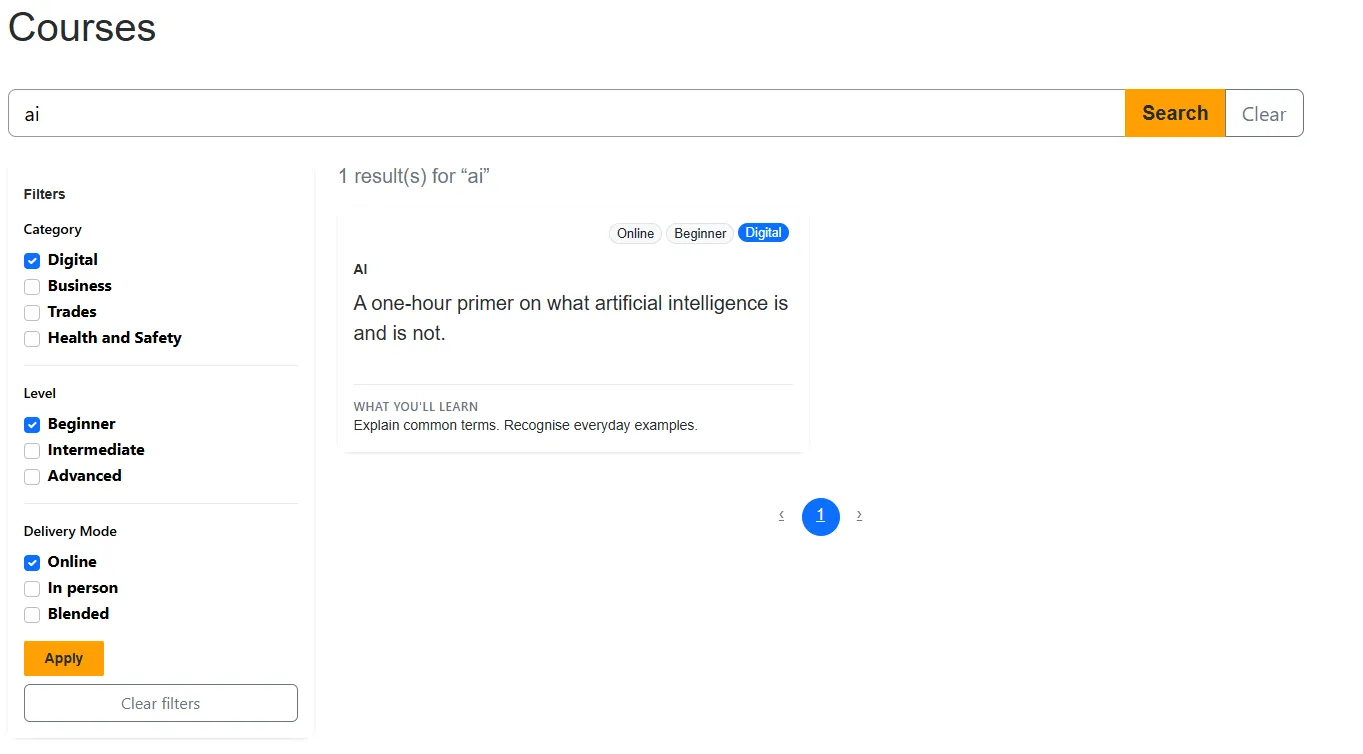
It also combines with the sidebar. Search “ai”, tick Digital, Beginner and Online, press Apply, and you get the one course that matches all of them.
Limits
- Single words only. A search with a space in it falls back to Quick Find “contains” matching. Typed values containing spaces did not behave reliably in the pattern when I tried them, so the template only uses the whole-word pattern for one word. “ai tools” can therefore still match “Thai tools”.
- Course name only. The demo searches one column. To search another, give it its own padded formula column, add a second condition to the filter, and send a second value. I haven’t tested formula columns over long multi-line text columns.
- A “word” means “not next to a letter”. Digits and punctuation count as boundaries, so “ai” matches “AI-assisted” and would match “AI101”. There is no stemming: “course” does not find “courses”.
- Wildcard characters are stripped from what the visitor types (
*,%,_,[,],^), so you can’t search for those characters. - Not tested at scale. A pattern that starts with a wildcard can’t use an index, and it runs against a formula column. That is fine for a catalogue of a few hundred rows. I have not measured it on a large table.
- It depends on platform behaviour that isn’t documented in detail. The
trailing wildcard on typed values, and the escaping of
mf, are things I found by testing. Re-test after platform updates.
Summary
- Quick Find matches letters, not words.
- A FetchXML metadata filter with
adx:uiinputtype="text"lets a template feed a pattern into the list’s query. - The platform adds a wildcard to the end of every typed value, so you can’t write a pattern that means “ends with” or “equals”.
- Padding the text with a marker character in a formula column means one
pattern,
*[^a-z]word[^a-z]*, covers every position. - Build the value on the server, pass it to
entityviewasmetafilter, and skip the filter when drawing the sidebar.